Set up the licensing directory
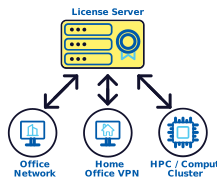
Follow the steps below:
1. Choose a license server
2. Configure communication settings
3. Set up the licensing directory
- Windows
- Mac
- Linux
1. Choose a license server
A license server:
-
should have a stable network connection and be accessible from other machines
-
should NOT be a laptop since they are frequently asleep and/or are inaccessible by other machines
-
should be managed by a person with admin privileges
-
must have a server-entitlement installed so that the machines running the software (the “client machines”) can connect to the server using the server identifier Client Machine Set-up
2. Configure communication settings
Communication requirements:
-
client machines must be able to make TCP connections to the server port on which the license server process is listening (the default is 53000)
-
connections should not be blocked by firewalls on either the clients or the server itself
-
connections must be allowed by any network security layers (e.g., VPNs)
-
client machines need to have at least one of the TLS hostnames of the server to identify that server when configuring the client machine
3. Set up the licensing directory
a. Create a directory
Open a Command Prompt or Power Shell via “Run as Administrator”
On the server machine, create the ‘licserver’ directory and the ‘bin’ subdirectory :
mkdir C:\ProgramData\Schrodinger\licserver\bin
b. Download or copy licensing executables:
(option 1) Download licensing executables
Download Windows zip file 
|
| Download Mac zip file
|
| Download Linux zip file
|
Extract the files to:
C:\ProgramData\Schrodinger\licserver\bin
 or (option 2) Copy licensing executables
copy "C:\Program Files\Schrodinger2026-3\internal\bin\licserverd.exe" C:\ProgramData\Schrodinger\licserver\bin\ copy "C:\Program Files\Schrodinger2026-3\internal\bin\lictool.exe" C:\ProgramData\Schrodinger\licserver\bin\
Next Step: Install your first Schrödinger licenses and configure the system service
1. Choose a license server
A license server:
-
should have a stable network connection and be accessible from other machines
-
should NOT be a laptop since they are frequently asleep and/or are inaccessible by other machines
-
should be managed by a person with admin privileges
-
must have a server-entitlement installed so that the machines running the software (the “client machines”) can connect to the server using the server identifier Client Machine Set-up
2. Configure communication settings
Communication requirements:
-
client machines must be able to make TCP connections to the server port on which the license server process is listening (the default is 53000)
-
connections should not be blocked by firewalls on either the clients or the server itself
-
connections must be allowed by any network security layers (e.g., VPNs)
-
client machines need to have at least one of the TLS hostnames of the server to identify that server when configuring the client machine
3. Set up the licensing directory
a. Create a directory
On the server machine, create the ‘licserver’ directory and the ‘bin’ subdirectory :
sudo mkdir -p /Library/Application\ Support/Schrodinger/licserver/bin
Restrict access to the ‘licserver’ directory (regular users don’t need access):
sudo chmod -R 0750 /Library/Application\ Support/Schrodinger/licserver
Grant read/execute permissions to the base directory:
sudo chmod 0755 /Library/Application\ Support/Schrodinger
b. Download or copy licensing executables:
(option 1) Download licensing executables
| Download Windows zip file
|
| Download Mac zip file
|
| Download Linux zip file
|
Extract the files to:
/Library/Application\ Support/Schrodinger/licserver/bin
or (option 2) Copy licensing executables
sudo cp /opt/schrodinger/suites2026-3/internal/bin/licserverd /Library/Application\ Support/Schrodinger/licserver/bin/ sudo cp /opt/schrodinger/suites2026-3/internal/bin/lictool /Library/Application\ Support/Schrodinger/licserver/bin/
Next Step: Install your first Schrödinger licenses and configure the system service
1. Choose a license server
A license server:
-
should have a stable network connection and be accessible from other machines
-
should NOT be a laptop since they are frequently asleep and/or are inaccessible by other machines
-
should be managed by a person with admin privileges
-
must have a server-entitlement installed so that the machines running the software (the “client machines”) can connect to the server using the server identifier Client Machine Set-up
2. Configure communication settings
Communication requirements:
-
client machines must be able to make TCP connections to the server port on which the license server process is listening (the default is 53000)
-
connections should not be blocked by firewalls on either the clients or the server itself
-
connections must be allowed by any network security layers (e.g., VPNs)
-
client machines need to have at least one of the TLS hostnames of the server to identify that server when configuring the client machine
3. Set up the licensing directory
a. Create a directory
On the server machine, create the ‘licserver’ directory and the ‘bin’ subdirectory :
sudo mkdir -p /opt/schrodinger/licserver/bin
Restrict access to the ‘licserver’ directory (regular users don’t need access):
sudo chmod -R 0750 /opt/schrodinger/licserver
Grant read/execute permissions to the base directory:
sudo chmod 0755 /opt/schrodinger
b. Download or copy licensing executables:
(option 1) Download licensing executables
| Download Windows zip file
|
| Download Mac zip file
|
| Download Linux zip file
|
Extract the files to:
/opt/schrodinger/licserver/bin
or (option 2) Copy licensing executables
sudo cp $SCHRODINGER/internal/bin/licserverd /opt/schrodinger/licserver/bin/
sudo cp $SCHRODINGER/internal/bin/lictool /opt/schrodinger/licserver/bin/
Next Step: Install your first Schrödinger licenses and configure the system service